Sunday, March 9th 2026
How to Use the Animate Old Photos Browser Extension (Chrome & Edge)
Publié par
The Animate Old Photos browser extension brings the power of AI photo animation directly to your browser — available on both Chrome and Microsoft Edge. Instead of visiting the website every time, you can upload photos, write prompts, and generate animated videos — all from a convenient side panel.
In this guide, we'll walk you through every step: from installing the extension to downloading your first animated video.
What You Need Before Getting Started
Before using the extension, make sure you have:
- Google Chrome or Microsoft Edge (other Chromium-based browsers like Brave or Arc also work)
- An Animate Old Photos account with available credits. If you don't have one yet, sign up here.
- Sufficient credits — each animation costs 3 credits. You can purchase credits from the pricing page.
Step 1: Install the Extension
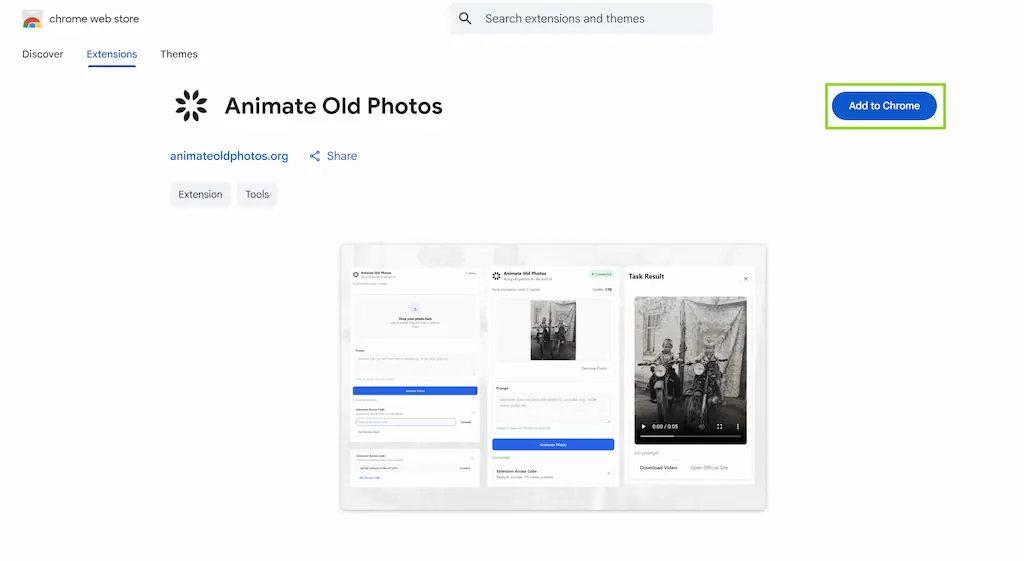
- Visit the Animate Old Photos Chrome Extension page on the Chrome Web Store.
- Click "Add to Chrome" and confirm the installation.
- Once installed, you'll see the Animate Old Photos icon in your browser toolbar. You may need to click the puzzle icon to pin it for quick access.
Installing on Microsoft Edge
The extension is also available natively on the Edge Add-ons Store — no extra configuration needed.
Install from the Edge Add-ons Store
- Open Microsoft Edge and visit the Animate Old Photos Edge Add-on page.
- Click "Get" and then confirm by clicking "Add extension".
- The Animate Old Photos icon will appear in your Edge toolbar. Pin it for easy access.
Step 2: Get Your Extension Access Code
The Extension uses an Extension Access Code to link to your paid Animate Old Photos account. Here's how to get one:
- Go to Animate Old Photos and sign in to your account.
- Click on your avatar in the top-right corner of the page.
- In the dropdown menu, click Apply for API.
- Click "Create Access Code", give it a name (e.g., "My Laptop"), and copy the generated code.
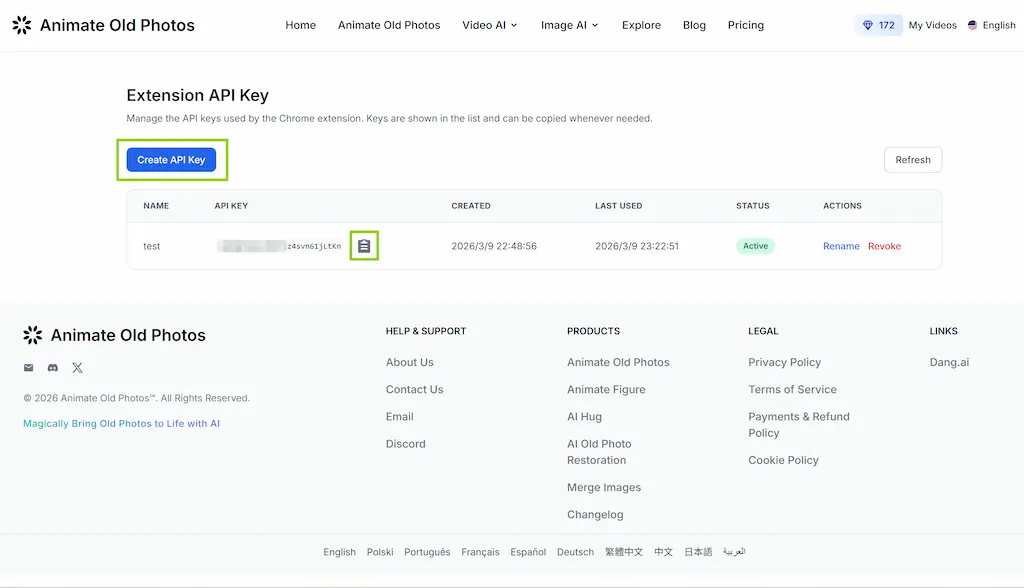
Important: The access code is shown only once upon creation. Make sure to copy and save it securely. If you lose it, you can always create a new one and revoke the old one.
Step 3: Connect the Extension
- Click the Animate Old Photos icon in your browser toolbar to open the extension side panel.
- In the "Extension Access Code" field, paste the code you copied from the website.
- Click the "Connect" button.
- Once connected, you'll see your available credit balance displayed at the top of the extension.
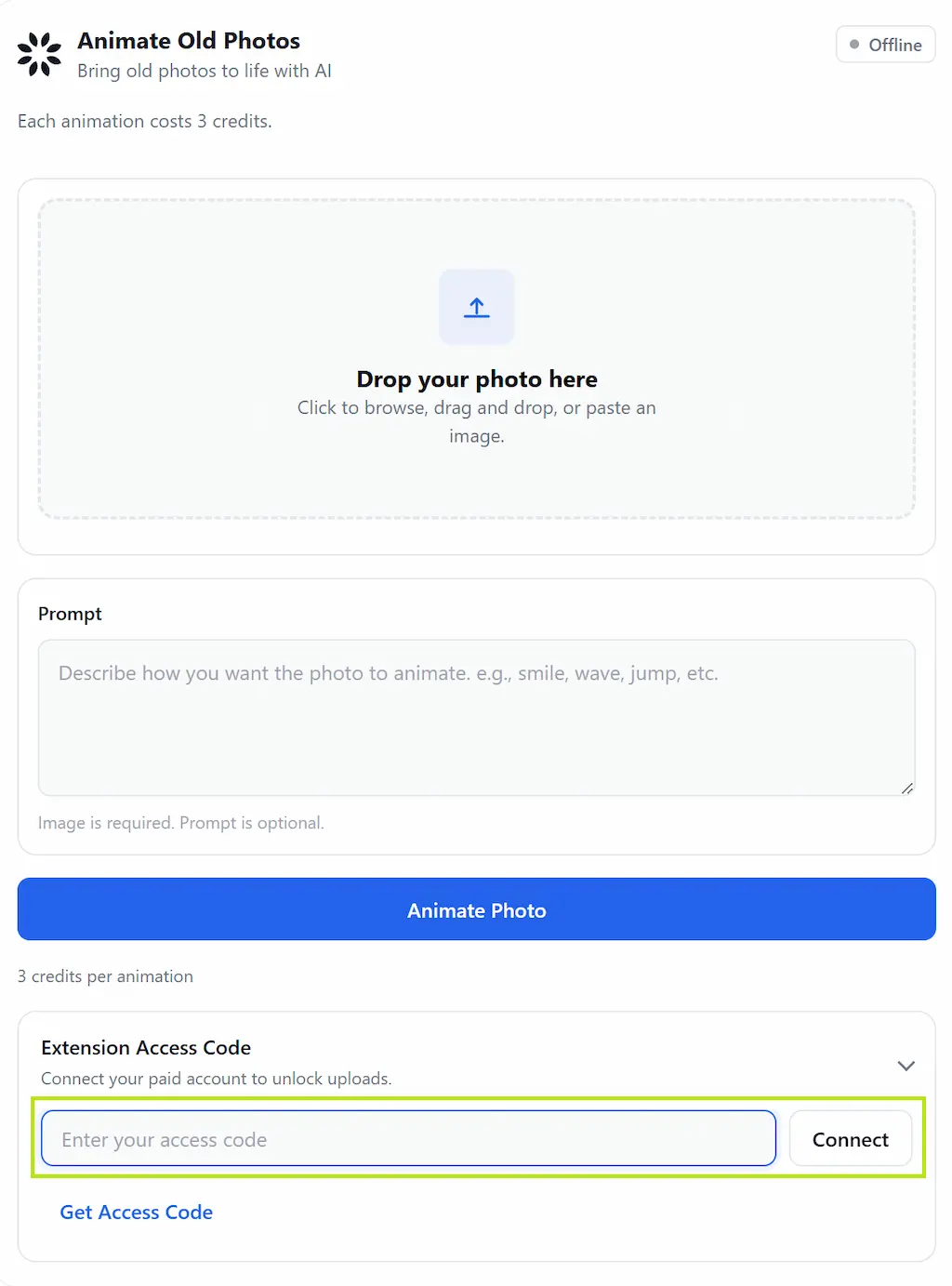
If the connection is successful, the input field will become read-only, and you'll see "Refresh Credits" and "Disconnect" buttons appear.
Step 4: Upload and Animate a Photo
Now for the fun part — let's animate a photo!
- Choose an image: Click the image upload area or the "Choose Image" button. You can also drag and drop an image, or paste one from your clipboard. Supported formats are PNG and JPEG.
- Add a prompt (optional): In the text area below the image, describe how you'd like the photo to move. For example: "Gentle smile with a slight head tilt" or "Eyes blinking slowly with a warm expression". You can leave this empty for a default animation.
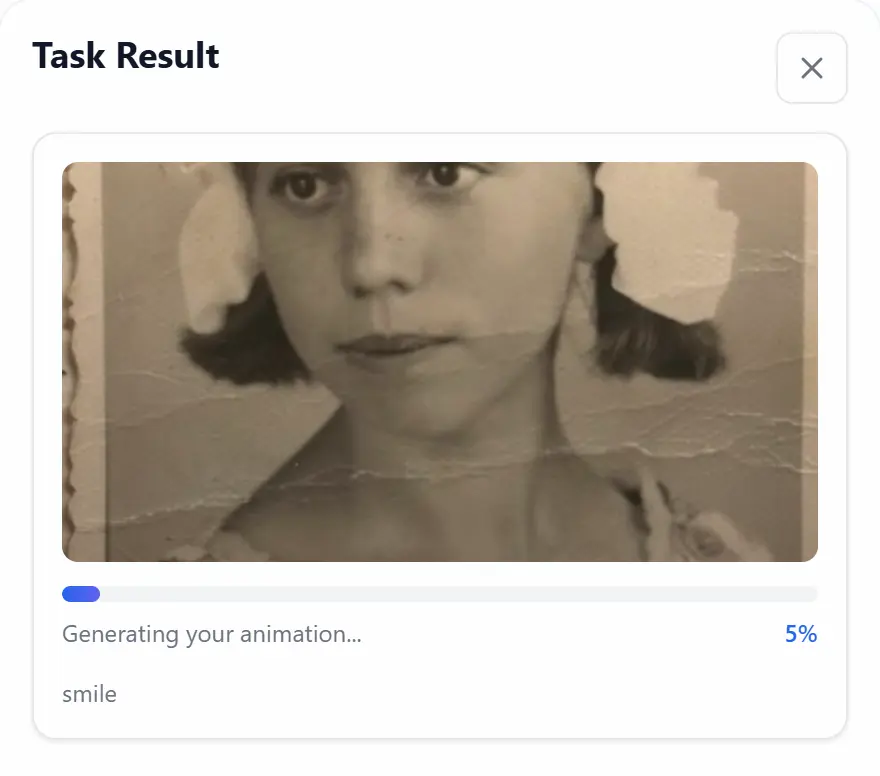
- Click "Animate Your Photo": The extension will upload your image and start the animation process.
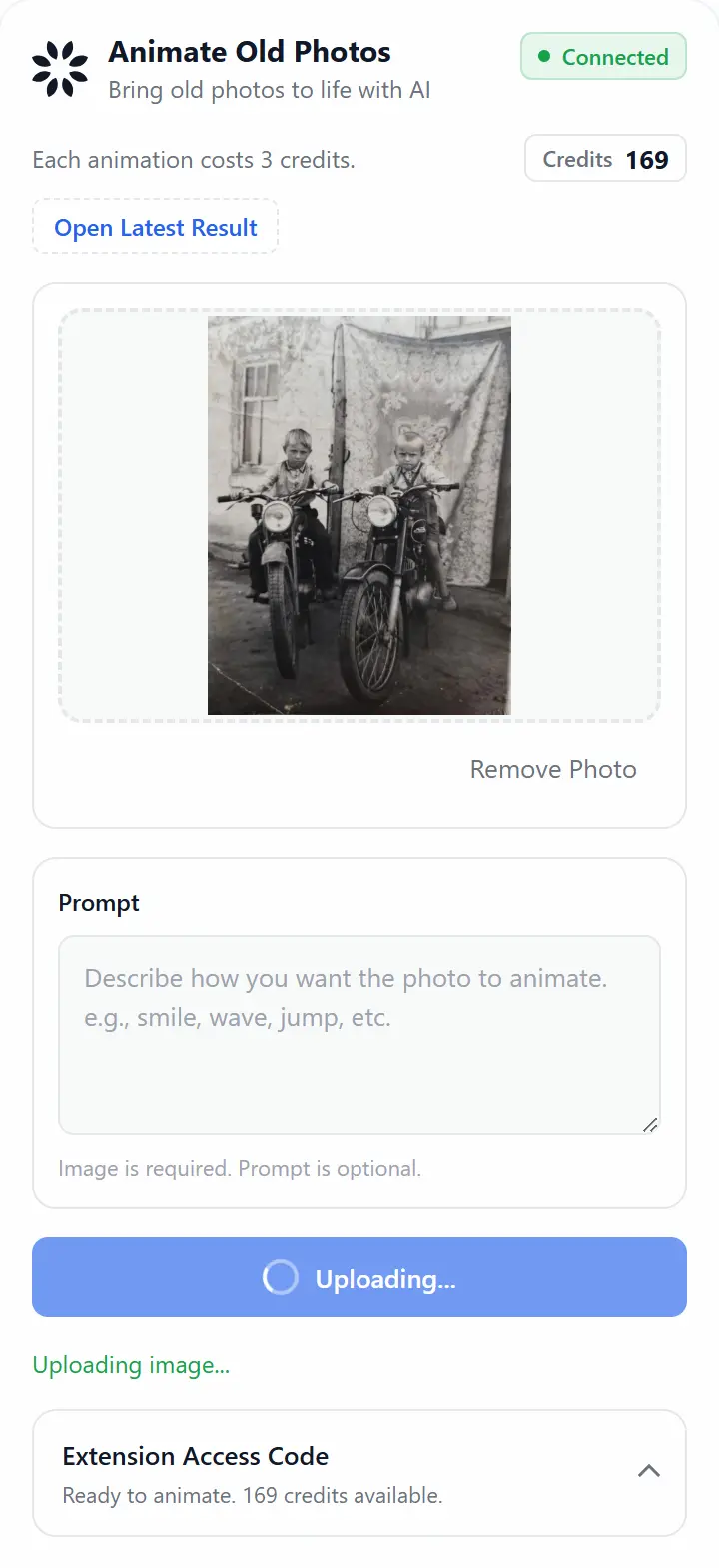
A progress bar will appear showing the generation status. The process typically takes 30–60 seconds depending on server load.
Step 5: View and Download Your Result
Once the animation is complete:
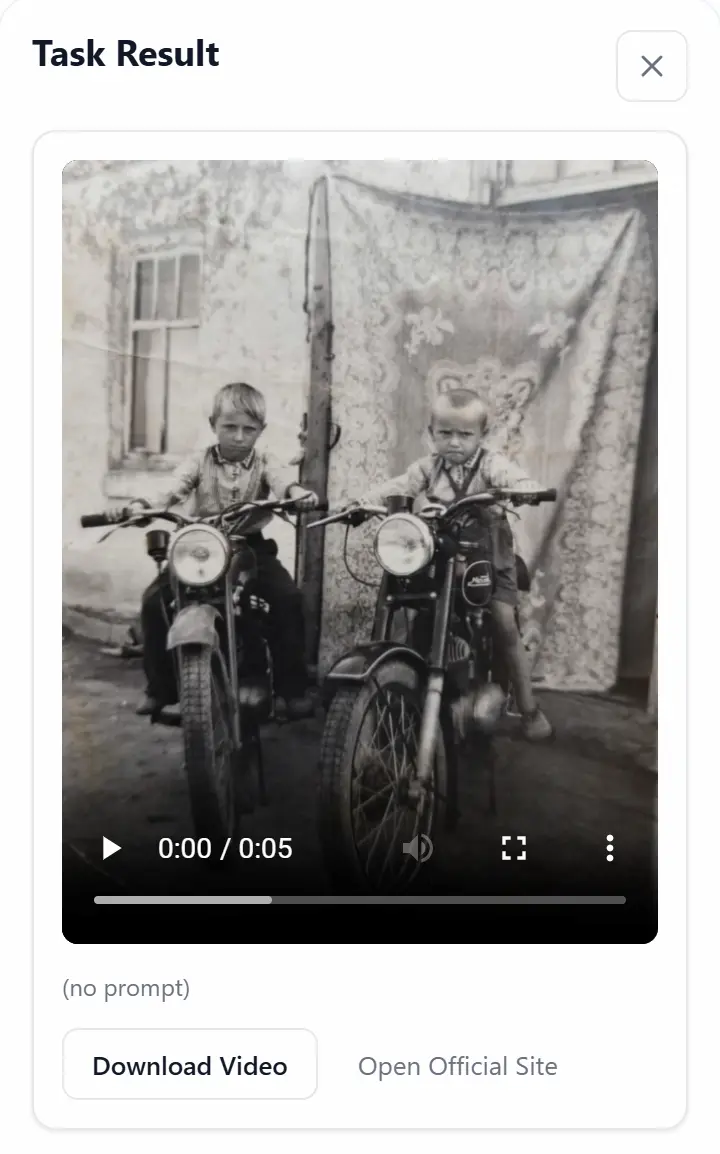
- The generated video will automatically play in the result view.
- Click "Download Video" to save the animated video to your computer.
- To create another animation, click the close button (×) in the top-right corner to return to the upload form. Your previous image and prompt will still be there.
Bonus: Right-Click Quick Access
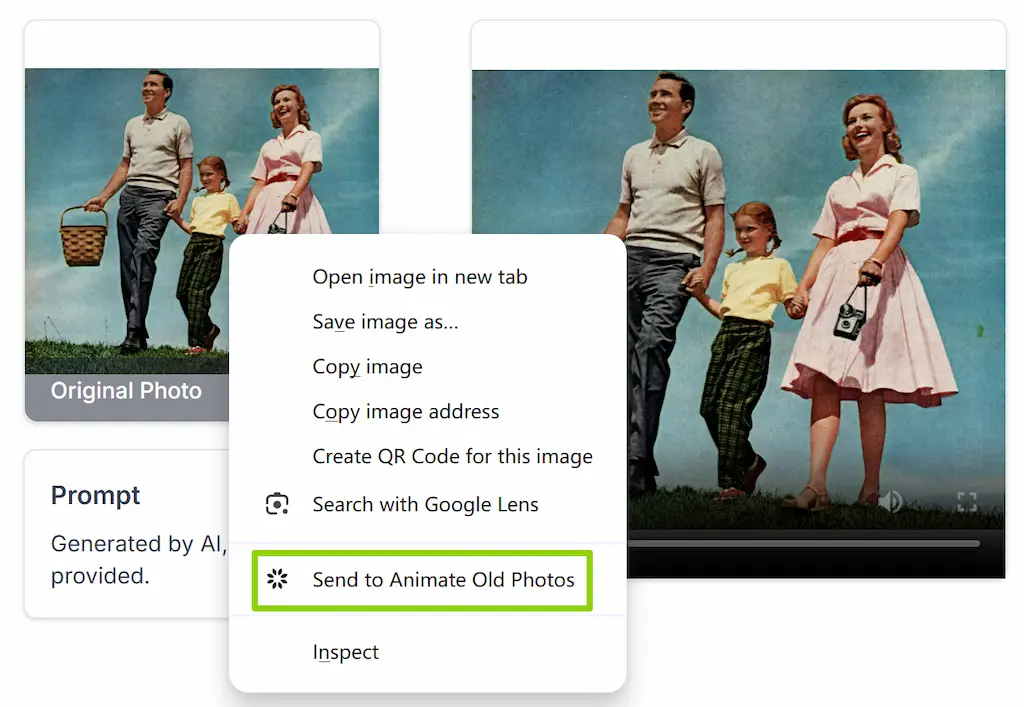
If you're browsing photos on the Animate Old Photos website, you can use the right-click context menu for a faster workflow:
- Right-click on any image on Animate Old Photos.
- Select "Send to Animate Old Photos" from the context menu.
- The extension icon will show a badge indicator "1" to let you know an image is ready.
- Open the extension side panel — the image will be pre-loaded and ready to animate.
Managing Your Account
Refresh Credits
If you've purchased more credits on the website, click the "Refresh Credits" button in the extension to update your displayed balance.
Disconnect
Click "Disconnect" to unlink the extension from your account. This clears your locally stored credentials. You can reconnect anytime with the same or a different access code.
Revoke Access Codes
If you suspect your access code has been compromised, go to Apply for API and revoke the code. This immediately prevents anyone from using that code.
Tips for Best Results
- Use clear, high-quality photos — higher resolution images generally produce better animations.
- Faces work best — the AI is optimized for animating portraits and photos of people.
- Keep prompts simple and specific — short, descriptive prompts like "gentle nod" or "soft smile" tend to produce more natural results than long, complex descriptions.
- Each animation costs 3 credits — check your balance before starting a batch of animations.
Troubleshooting
- "Invalid access code" error — Double-check your code, or generate a new one from the website.
- "Insufficient credits" error — Purchase more credits from the pricing page.
- Extension says "Token expired" — This is handled automatically. If it persists, try disconnecting and reconnecting.
- Image upload fails — Ensure your image is a PNG or JPEG file. Very large files may take longer to upload.
- Animation takes too long — Server load may be high. Wait for the progress to complete, or try again later.
Privacy and Security
The extension only communicates with animateoldphotos.org — no data is sent to any third-party server. Your images and generated videos are retained for a limited period (currently 30 days) and can be manually deleted from your account dashboard at any time. For full details, see our Extension Privacy Policy.
Ready to get started? Install from the Chrome Web Store or the Edge Add-ons Store and bring your old memories to life, right from your browser.